How to connect Google Analytics 4 to BigQuery

A guide to setting up the data export from GA4 to BigQuery, plus tips for working with GA4 data in BigQuery. Get the most out of your Google Analytics 4 data.
With the arrival of Google Analytics 4, we started running into BigQuery far more often. That's because, alongside the new version of Google Analytics, Google made the BigQuery connection available for free. Why should you start using this tool, and how do you connect it to your GA4 project?
What is BigQuery for?
BigQuery is a Google tool that's part of the Google Cloud Platform (GCP) and that you can think of as a data warehouse. So there's a virtual space (a cloud) that runs on Google's servers and is used to store and process your data. That means you don't have to worry about running and maintaining your own servers.
BigQuery is free as a service, but only up to a certain volume of data. Specifically, the free tier gives you 10 GB for storing data in the warehouse and 1 TB of capacity for processing data (for example via queries). For most Czech websites, the cost of using this service is therefore often zero, or minimal (low tens of dollars a month).
Setting up a Google BigQuery account
You set up Google BigQuery at this link. You'll need a Google account (just like with other Google services). I recommend using the same Google account you use to access your other Google services - it simplifies administration and any future integrations.
After you sign in, Google will ask you for basic information about the project (country, company size, and so on), for agreeing to the terms of service, and finally for your company details and a payment method.
Creating a project in Google BigQuery
Before you can set up the export from GA4 to BigQuery, you first need to create a new project in Google Cloud Platform. You can then use it for other tools in the GCP family too, not just BigQuery.
When creating the project, you choose its name and a Project ID. I recommend editing the Project ID and getting rid of the generated numbers (to make working in GCP easier). If the Project ID you enter isn't available, someone else has already taken it and you'll need to change the value.
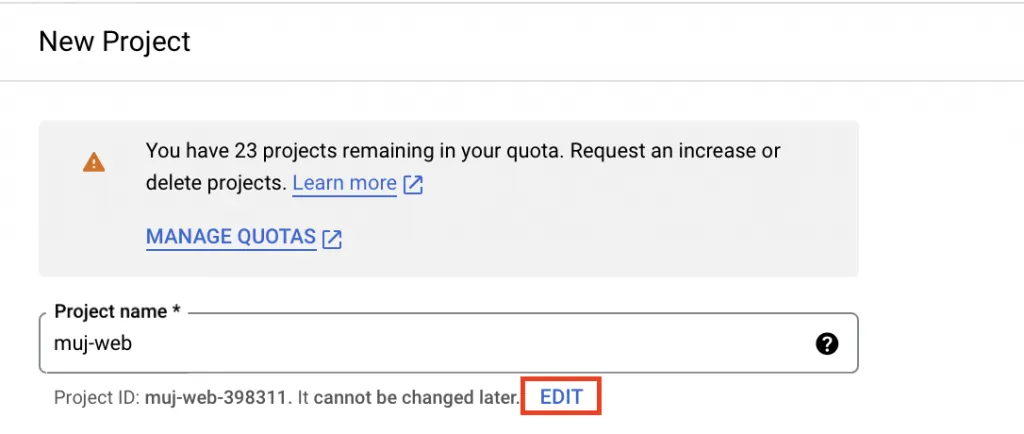
Next you need to create a Billing Account. You do this by going to the main Google Cloud Platform menu in the top left and clicking the Billing tab. You fill in the required details and link the Billing Account to your BQ project. A single Billing Account can be used for several BQ projects.
Connecting Google BigQuery to GA4
Once your project is created, just go to the Google Analytics 4 property you want to export (you need admin rights). Go to the Admin section in the bottom left, click the BigQuery Links tab, and then the button to create a new link.
Select the BigQuery project you created and, in the Data location section, choose where you want your data stored (the location can affect pricing and relates to privacy - I recommend European Union (eu)).
In the Event data section you choose the export type:
- Daily - every day it creates an
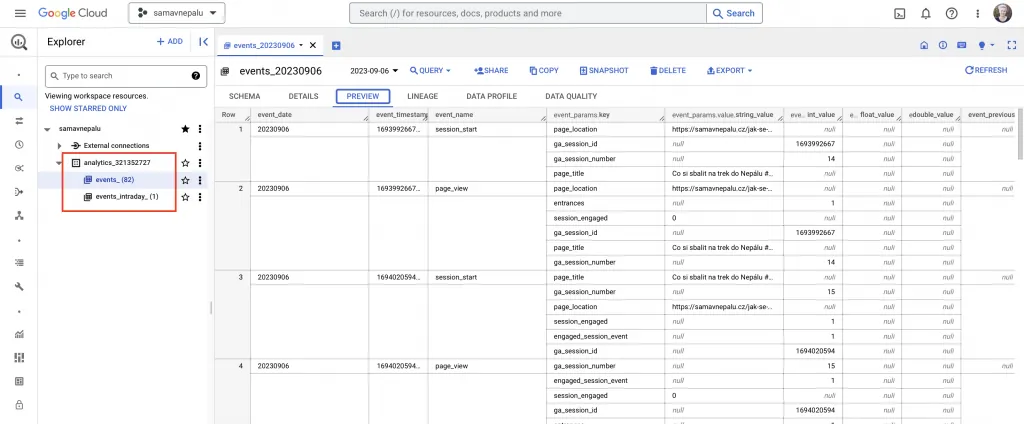
events_XXXXXXXXtable in BigQuery (the number after the underscore is the date). Each row is one event sent to GA4. - Streaming - creates an
events_intraday_XXXXXXXXtable, essentially near real-time data for the current day. It can also be used to debug measurement. It can only be set up with a billing account that has billing details filled in.
In the User data section you choose whether you also want to create an export for user data (Daily analogously creates a pseudonymous_users__XXXXXXXX table - each row is one user with a pseudo_user_id identifier).

The first export can take several days. After that, under the project you should see a new dataset named analytics plus the ID of your GA4 property, and inside it the tables for the daily exports (and intraday for real-time data, if you set it up).
Watch out for the expiration setting on BigQuery tables
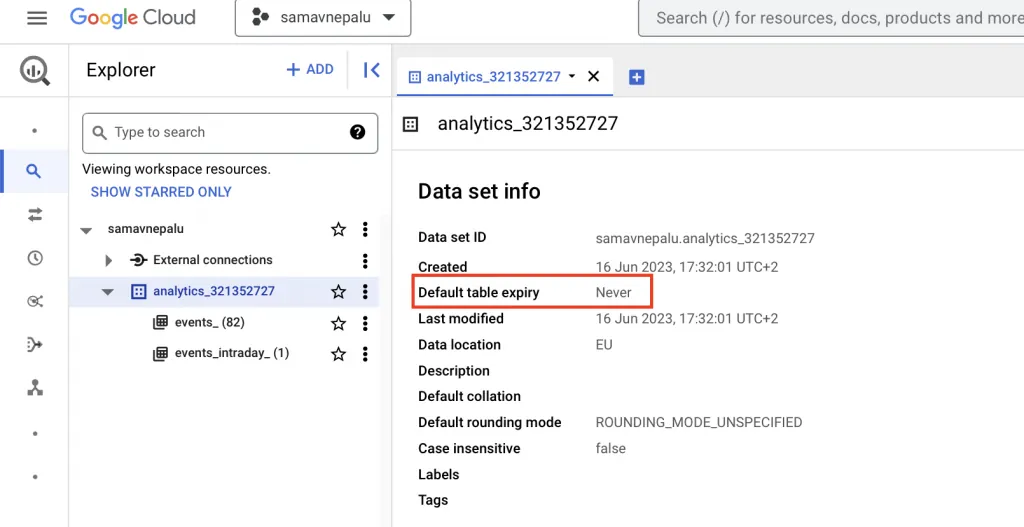
Finally, check the data expiration setting on the dataset. Click the dataset name and verify that Default table expiry is set to Never. If you see a different value, change it via the Edit details button. If you created the project without filling in billing details, the default value is set to 60 days - so watch out for that.
The maximum daily limit for the number of events is 1 million. If you exceed it, exports from GA4 are paused and you need to move to the paid version, or set up filters to reduce the data volume.
What are the benefits of GA4 exports to BigQuery?
The export essentially creates one big table with every event sent to GA4. Unlike the reports directly in GA4, the data in BigQuery is unaggregated and untouched by GA4 processing - it's raw data exactly as it comes in. To work with it, you need at least the basics of SQL.
- It's useful if you want to work with the data at a more advanced level, join it with other data, and build reports according to your own methodology.
- You can also use it purely as a data backup - when you're ready to take your data work further, you'll have the historical exports ready in BQ.
- The export tables can also contain events from users who did not consent to the processing of personal data (just without user information). So you can have more complete traffic data regardless of consent.
- If you have Google Signals turned on, you may run into thresholding in GA4 reports (Google removes some rows to prevent users from being identified - mainly an issue on low-traffic sites). Thresholding is not applied to the data in BQ.
- In GA4, the Explore reports only let you go back a maximum of 14 months with detailed data. If you want to work with complete data over a longer period, GA4 exports to BQ come in handy again.
Got a question or your own experience? Get in touch - I'm happy to chat.